

Four Questions to Help You Write Meaningful Alt Text
One of the most useful skills in accessible content creation is alt text. If you only learn one thing this week, learn this.
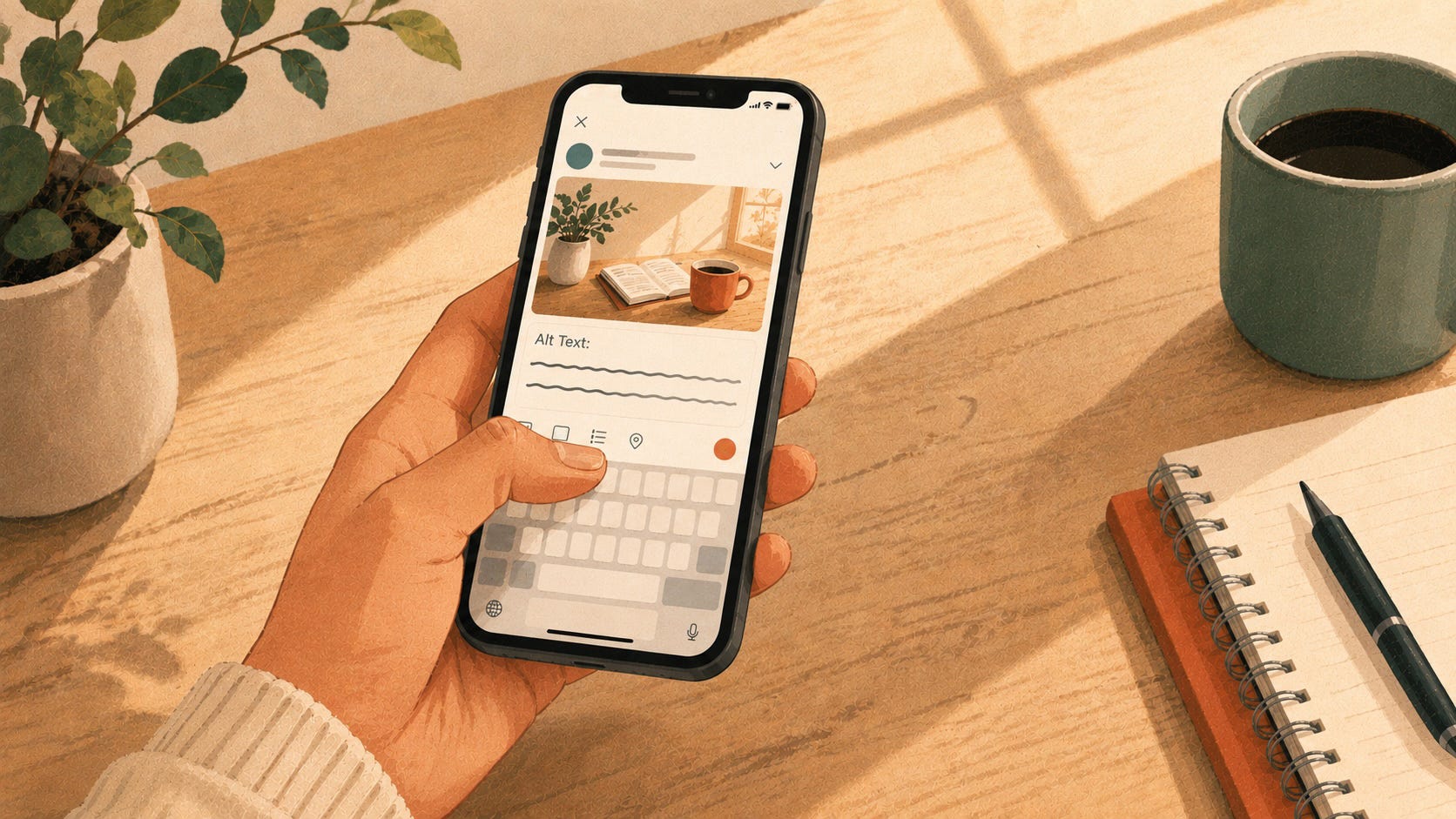
One of the most useful skills in accessible content creation is also one of the more subjective. But I have tips that are quick to learn and will help make sure everyone understands your graphics.
Alt text is the text that describes an image to anyone who can’t see it. The most common context: someone using a text-to-speech screen reader, who hears your image’s alt text spoken aloud as they move through your content. Other uses include displaying on screen when an image fails to load, or when someone is on a slow connection and turns images off.
That’s the what. The important thing to know is when and how to use it.
When alt text matters and when it doesn’t
Most platforms give you a field labeled “alt text” or “alternative text” every time you upload an image. The field doesn’t have to be filled.
That’s right, not every image needs alt text. Some images are decorative—pure visual interest, contributing nothing essential to the page’s information. Decorative images get an empty alt text field. (In HTML, that’s alt="" and the alt must always be present with an image.) The empty value tells assistive technology to skip the image entirely, which is exactly the right behavior if it’s decorative.
Other images are informational because they convey something the reader needs in order to understand the page. Those need meaningful alt text.
I’ve got four simple questions you can ask yourself to determine if you need alternative text for an image:
Question 1: Does the image link to another page?
Yes: Provide concise alt text that tells the user where the link takes them. In the case where the image is a link, the link destination is what matters—not what the image displays.
Example: A book cover in your monthly newsletter that links to a buy page. Meaningful alt text: “Buy Pride By the Book at your favorite retailer.” Not: “Cover of Pride By the Book.”
No: Proceed to Question 2.
Question 2: Does the image add meaningful information to the page?
No: The image is decorative and no alternative text is needed.
Example: A small geometric flourish used as a section divider, or a stock photo backdrop set behind a heading purely for visual mood.
Yes: Proceed to Question 3.
Question 3: Does the image contain content that is redundant to text nearby?
Yes: The image is decorative and no alternative text is needed.
Example: A photo of a microphone next to a laptop at the top of a post titled “How I record my podcast.” The title already tells the reader what the post is about, so the alt text here can be blank.
No: Proceed to Question 4.
Question 4: Is the image a complex graph, chart, or diagram where visual information goes beyond just using text?
Yes: Provide a brief description of the image and ensure the information is also available elsewhere on the page.
Example: A bar chart of literacy statistics. Meaningful alt text: “Chart: 54% of US adults read below sixth-grade level (National Literacy Institute).” Plus the full data in adjacent body text or a linked source.
No: Provide a brief description that effectively communicates the image’s intended message.
Example: A photo of you at a recent book event. Meaningful alt text: “Jeff signing books at Elk Grove Pride, smiling at a reader handing him a copy of Netminder.”
One more question you can think about alongside each of these: If someone can’t see the image, what are they missing that’s important?
The alt text mistakes I see most
A few specific things to never do:
Don’t use the filename or other gibberish as the alt text. “IMG_3842.jpg” tells a screen reader user nothing.
Don’t start with “Image of…” or “Picture of…” Screen readers already announce that an image is an image. So if you write “image of…” the person hears “Image. Image of a sunset.” Just write the description.
Don’t write nonsense or repeats. “Book cover” on every cover image, copy-pasted, is worse than empty. Each image needs its own unique description.
Don’t trust auto-generated text on social media platforms. Instagram and Facebook will populate the alt text field for you with descriptions like “May be an image of one person, indoor.” If the image has a lot of text in it, especially if the font is stylized, the alt text can be even worse like: AFunand Adventure” TheStteordinanes Time (no joke… that’s real alt text Facebook generated from one of my promo images). Replace this text. Always. Every time.
AI can help you
While social media auto-generates terrible alt text, ChatGPT, Claude, and Gemini can help you write meaningful alt text. Use a simple prompt that tells the AI what you need: “Please write meaningful alt text for this image that I’m using for my [insert the location].” It could be for your website, an email, social media, a presentation you’re creating, or an ebook.
However, don’t just take the first thing the AI gives you. Think it through with the decision tree above to ensure the text works correctly in the context of the place you’re using it.
Where to write alt text
Website platforms: WordPress, Wix, Squarespace, and others typically offer you the chance to add alt text when you upload an image and when you use one from your library. Always make sure you’re filling out the field for the context of the place you’re using it.
Email platforms: This is similar to website platforms. You’ll usually find the field available when you add the image to the email.
Social media: This one is tricky because it’s in very different places for each platform—and it may vary between the desktop and mobile versions too. Check the help documentation if you can’t locate it (or if it moves…which it does from time to time). Also, if you schedule your social media, make sure you know where in the scheduler alt text is added.
Another note on social media
Get into the habit of writing alt text for all the images you use on social media. Since most of them auto-generate terrible alternative text, you need to always rewrite it so anyone checking out your posts can understand the entire thing.
This is the one place you may end up writing alt text for a decorative image. That’s okay because it’s better to have that than the meaningless text the platform writes for you.
Try this today
Find one image you’ve published recently. It could be your latest hero image on your website, or your most recent social post. Open it on whatever platform it lives on. Add or rewrite its alt text using the questions above as your guide.
If you want a second opinion, leave a comment with a link and what image I should look at. I’ll reply with my take on it.
And that’s launch week. Thanks for joining me. I hope you got something useful. If you did, I hope you’ll share with your fellow creatives.
Starting next Thursday, May 28, we settle into the regular weekly rhythm. The first regular post will be about color contrast, the most common accessibility failure on the web according to WebAIM, and a quick test that shows you whether your text passes.
See you next Thursday.
— Jeff
Digital Accessibility – Content for Everyone is a free weekly post from Jeff Adams about making your digital content—your site, your podcast, your newsletter, your social media—usable by everyone who shows up to it. Built on the foundation of Content for Everyone, the book Jeff co-wrote with Michele Lucchini. Companion site: contentforeveryone.info.