
Five Accessibility Things You Can Fix Today
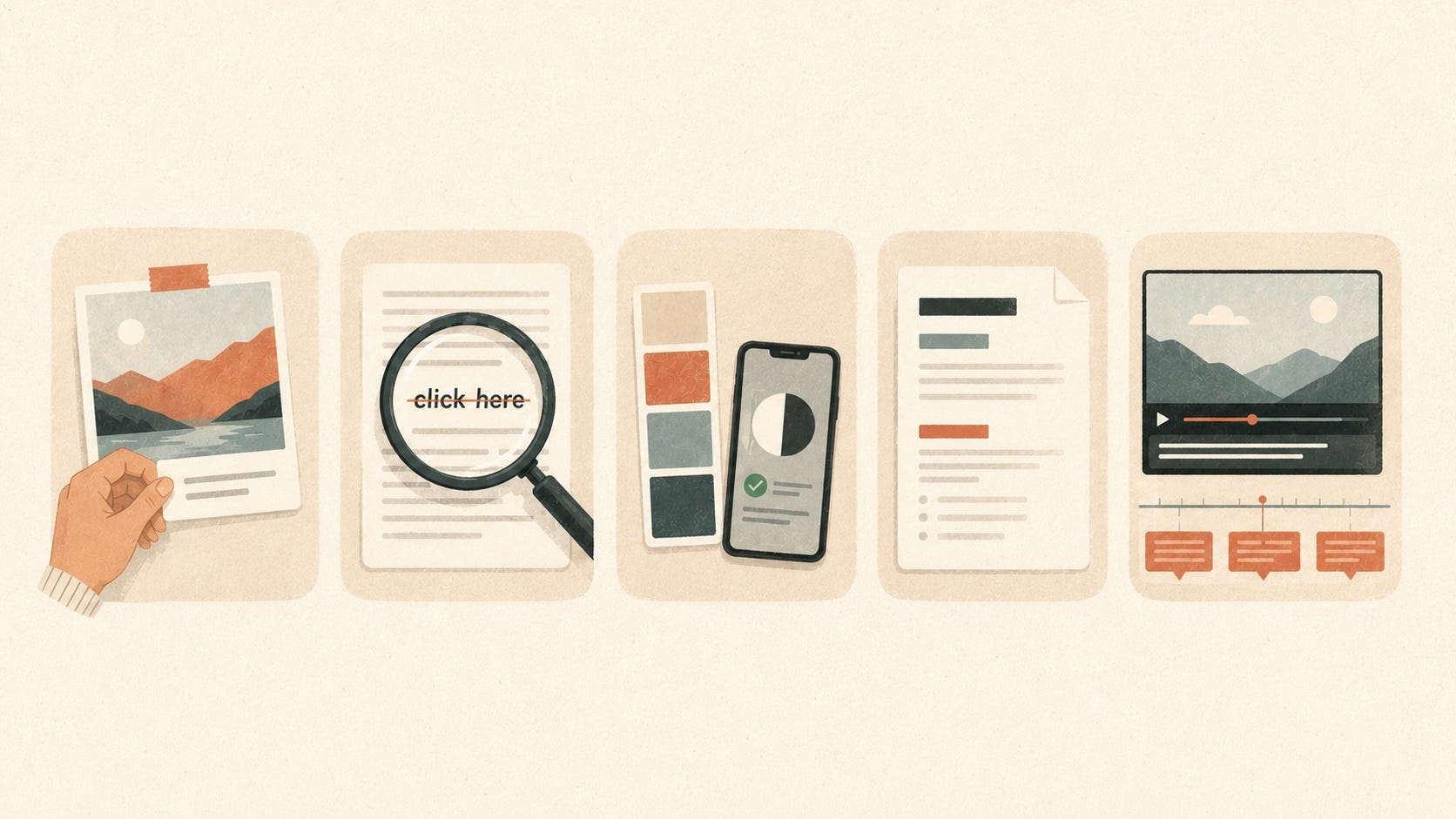
Five things you can fix today. Three of them attack the issues that have been the most prevalent on the web for seven years running.
Yesterday I told you the audience for accessible content is bigger than you think. Today we focus on fixing some of these issues so your content is more accessible.
I’ve got five specific things you can fix today, on your own, in under an hour. Three of them directly attack the most-failed accessibility issues on the entire internet, according to the WebAIM Million 2026 report. One of them isn’t on that list because automated tests can’t catch it but it’s the one some in your audience will thank you for the most.
Here’s the framing I keep coming back to: your one-person operation, with no design or development team, can outperform the top one million homepages on these issues this afternoon.
A couple of caveats before we start
The WebAIM Million is based on an automated scan. Automated scans catch maybe 30 to 40 percent of accessibility issues that can be determined by the Web Content Accessibility Guidelines (WCAG) 2.2 AA success criteria. (I’ll tell you more about the WCAG in a future post.)
For example, a scan can tell if you’ve got an alt attribute on an image, but they can’t tell whether your alt text is actually meaningful. Three of the fixes below cover what scans can find, which is still high-leverage. The work your eyes can do on top of that is its own subject for another post.
Also, we’re not tackling all of the WebAIM Million’s top issues. There are some that need a developer’s touch and for our purposes the goal is to accomplish things that you should be able to do yourself.
OK, on to the five.
1. Review your homepage images for alternative text
The stat: Across the top million homepages, 53% are missing alt text on at least one image.
The fix: Open your website’s homepage. Check the alt text for the images and add/update it if needed. Alternative text needs to provide meaningful information to the user so they can understand the image. Some guidance about alt text:
If it’s a decorative image that is only there for visual appeal, it doesn’t need alt text.
You also don’t need alt text if the image is conveying equivalent information to text that’s on the screen adjacent to it.
You must have alt text if the image has information that isn’t available anywhere else on screen. Ask yourself this: If the person visiting your site can’t see the image, are they missing critical details that aren’t covered in the text? That’s what the alt text should be.
Every major platform (WordPress, Wix, Squarespace, Substack, Canva, MailChimp, MailerLite, ConvertKit, Instagram, Facebook, LinkedIn) has an alt text field. The field is usually labeled “Alt text,” “Alternative text,” or “Image description.” Sometimes it’s hidden (Instagram for instance buries the alt text field amongst other settings) so if you can’t find it, consult the platform’s help pages. And if the platform doesn’t let you set alt text, you should send them a complaint because you’re prevented from managing the accessibility properly.
Coming up Friday: a full post on what to write in that alt text field, and when to leave it blank.
2. Rewrite a “click here” link and check your image links while you’re there
The stat: Roughly 46% of the top million homepages have at least one empty or non-descriptive link.
The fix: This one’s two parts that are really the same problem. A reader using a screen reader can access a dedicated “links list” that strips it from the surrounding text. So a link that just says “click here” or “read more” tells them exactly nothing. And it gets worse if there are multiple links that all say the same thing.
In addition, even for those not using a screen reader, trying to scan a page where all the links are identical can cause users to spend more energy trying to contextually understand where links will go.
The text fix: On your homepage or in your next newsletter, locate the “click here,” “read more,” or other ambiguous links. Then rewrite them so the link text alone tells the user where it goes. “Read more about my new release” instead of “Read more.” “Subscribe to my newsletter” instead of “Click here.”
The image fix: If any of your links are images—your logo at the top of the page, a button graphic, a thumbnail of a product—the alt text on the image must be the link’s destination. So the alt text in these cases shouldn’t describe the picture. A logo image that links to your homepage gets alt text like “Home,” not “Stylized logo of my name.” An image of your book cover doesn’t describe the book cover but instead should say “Get [name of book] at your favorite retailer.”
Same skill, two flavors.
Coming up June 11: a full post on writing better link text.
3. Check color contrast on your call-to-action
The stat: On 84% of the top million homepages, you’ll find text that doesn’t have enough contrast against its background. The average page has 34 separate instances of it. This is the single most common accessibility failure on the web.
The fix: Open your homepage. Find the places where you have link text, buttons or other call to action, such as your “subscribe” call-to-action, your “buy” buttons, your “contact me” link. The things you most want your visitors to click.
Open the WebAIM Contrast Checker in a new tab. Enter your CTA’s text color and background color. The tool will tell you instantly whether you meet the required threshold, which is 4.5:1 for normal text and 3:1 for large text and most UI components (large text here means 18-point and up, or 14-point and up if it's bold). If it fails, you can use the contrast checker’s “lightness” sliders to change the foreground or background color to a shade of the same color that passes.
Once you’ve got the new hex code, you can update the colors in your theme settings or your design tool. On most modern platforms this is a few clicks. (Older WordPress themes may have CSS-locked button colors that need a developer’s help but for the vast majority of you, this is simple to do within the platforms we use.)
The things you most want clicked just got perceivable for thousands more people.
Coming up next Thursday (May 28): a deeper post on color contrast.
4. Use real headings on your website
The stat: On 42% of the top million homepages, headings skip levels (jumping from H2 to H4, for example). About 18% have multiple H1s. Around 8% have no headings at all.
The fix: Headings are a navigation system, not a visual style. A reader using a screen reader can review them like a table of contents. However, this is only effective if your headings are meaningful and not just used for visual style.
Open your homepage and other key pages. Look at the section breaks. Are they real headings (an H2 or H3 block in your editor’s dropdown) or just bold text with bigger font? If they’re already identified as headings, are they going in logical order?
If they’re just bold text: convert each one to a real heading. In WordPress, Substack, Wix, Squarespace, and most newsletter editors, the editor has a heading dropdown right there. Click into the line, change the block type from “paragraph” to “Heading 2” (or 3, depending on the level). As with the alt text, if you can’t find how to set these in your platform, consult the help section.
Here’s an example of the heading sequence from my sites’ Books page.
[h1] Books
[h2] Romances
[h3] Hockey Hearts
[h3] On Stage
[h3] Standalone Romances
[h2] Young Adult
[h3] Codename: Winger series
[h3] Novellas
[h2] Non-fiction
The H1 matches the title of the page. The H2s are the major sections while the H3s are for series or to group standalones. Within each H3 are the individual books. Notice how the groupings work. You wouldn’t have the H3s be H2s because the H3s are sub categories. In addition, you wouldn’t want the H3s to be H4s because then the logical ordering of the headings is broken.
To a sighted reader, using headings still creates section headers to organize visually. For a screen reader user, it’s the difference between an easily navigable document and a wall of unorganized text.
Coming up June 4: a deeper post on headings as a navigation system.
5. Add captions to one video
The stat: Captions aren’t on the WebAIM Million’s top failure list because automated scans can’t tell whether your captions are accurate or even present. But they’re one of the highest-leverage things you can do if you’re creating video.
The fix and a time check: Pick one video. Add or correct its captions.
YouTube, Vimeo, Wistia, Instagram, Facebook, TikTok all support captions, either as an upload or as in-app editing of auto-captions. Auto-captions, which some platforms offer, are only a starting point, not a finish line. You have to read through and fix names, technical terms, punctuation, and other things that auto-caption tools get wrong.
Now, the time check: a 30-minute video is not a five-minute caption job. A short Instagram clip is. Pick a length that fits the “under an hour” timeframe. If you’re doing your most recent IG Reel, you can probably do it in fifteen minutes. If you’re tackling your most recent podcast episode, that’s probably a longer project.
Either way your audience members who are deaf or hard of hearing, the people watching with the sound off in a coffee shop, the second-language speakers who understand English better reading it rather than hearing it—all of them just got to be a part of your content.
For now, this is just about one video but you need to make this part of your video production workflow. In a future post, I’ll do a deep dive on captions to provide you with even more tips.
You did it
If you do all five of these today, you’ll have addressed issues that are among the things that show up most often on the WebAIM Million list.
This is the part of the work that surprises people who are new to content accessibility: most of it’s not hard. It’s just not happening because we don’t know to do it and haven’t added it to our workflows. Now that you know these basic tips, you can go beyond fixing things today and make sure your future content also considers these five things.
Tomorrow is Global Accessibility Awareness Day. I’ll discuss what GAAD means for creative entrepreneurs, the pledge I’m making for the year ahead, and an invitation for you to make yours too.
See you tomorrow.
— Jeff
Digital Accessibility – Content for Everyone is a free weekly post from Jeff Adams about making your digital content—your site, your podcast, your newsletter, your social media—usable by everyone who shows up to it. Built on the foundation of Content for Everyone, the book Jeff co-wrote with Michele Lucchini. Companion site: contentforeveryone.info.